
Study
- What you can do
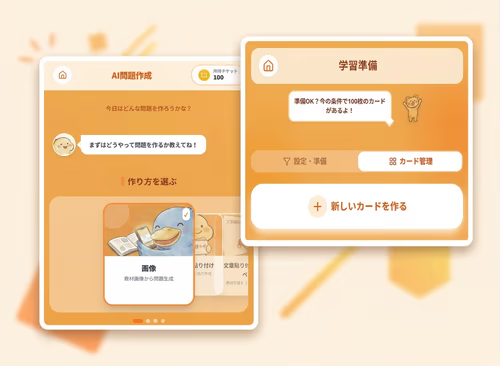
- Study with the cards you created. You can also create, edit, delete, organize folders and tags, and manage images.
Quick Start
A short guide to the basic flow.
Create cards manually from photos or text on the Study page. Use AI question creation when you want to generate many cards automatically.
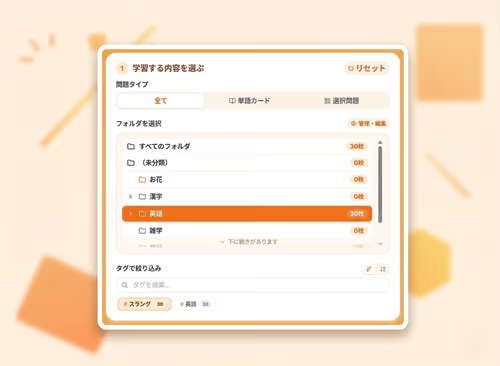
Study cards organized by folder and tag.
Use the start button at the bottom center to begin a study session.
Menu Guide
Learn what each page is for.
FAQ
Open only the question you need.
The button is disabled when there are no cards. If filters have reduced the result to zero, use the reset button to clear the filters.
Use shorter, more specific input and reduce the number of generated questions before saving.
Only cards whose front side is text of 50 characters or fewer are shown. Prepare shorter cards for this mode.
Support
Use these links when you are stuck on a specific point.
Contact
Ask questions or send requests here.
The Other category is fine if you are unsure.
Report a bug
Include the screen name, steps, and a screenshot when possible.
Please choose the Bug category.